Echory Desktop App

Headphones on? Then Echory needs the app.

Install it once, and Echory hears both sides.

Download for Windows

Version 1.0.1 · approx. 99 MB · Download for Mac

The desktop app is available for Windows and Mac. Open this page on your computer to install it.

Signed by Echory GmbH · Windows 10/11 · macOS on Apple silicon · Automatic updates

Do I need the app?

Two ways to use Echory.

Our recommendation: install the app once, even if you mostly work without headphones. Then you can decide before every conversation.

01Without headphones

You use Echory right in your browser.

02With headphones or a headset

You install the Echory desktop app once. You keep using Echory itself in your browser.

03Choose in Live Mode

Before the conversation, you simply choose whether you join with or without headphones.

Get the app

Install once, then it runs in the background.

Windows

Windows 10 and 11, 64-bit

Download for Windows

Version 1.0.1 · approx. 99 MB · Checksum (SHA-256)

macOS

Mac with Apple silicon (M1 or later)

Download for Mac

Version 1.0.1 · approx. 99 MB · Checksum (SHA-256)

Mac with an Intel processor: use Echory without headphones in your browser.

Still on version 1.0.0? We recommend uninstalling it before you install. Here’s how

Installation notes

Four steps and you’re ready.

You only do this once. After that you just work in Echory in your browser, and the app runs alongside in the background.

  1. Download and open

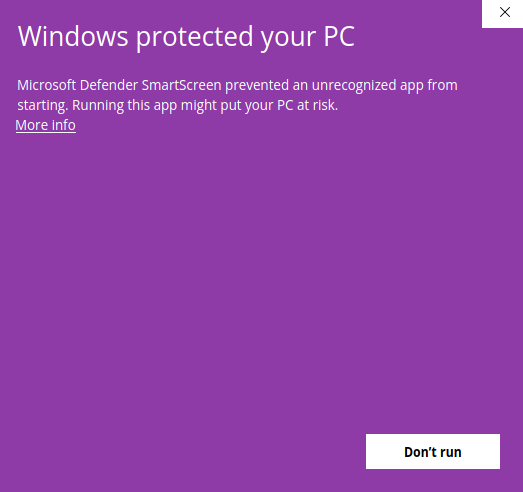
    If your browser warns you about the file, choose “Keep”. If Windows shows “Windows protected your PC”, click “More info”, check that the publisher is Echory GmbH and click “Run anyway”.

  2. Install

    The installation needs no admin rights. Afterwards you’ll find Echory in the Start menu.

  3. Sign in once

    In the app, click “Continue with browser” and confirm in your browser. You don’t need a second password. The app then shows “Connected” and stays signed in.

  4. Connect in Live Mode

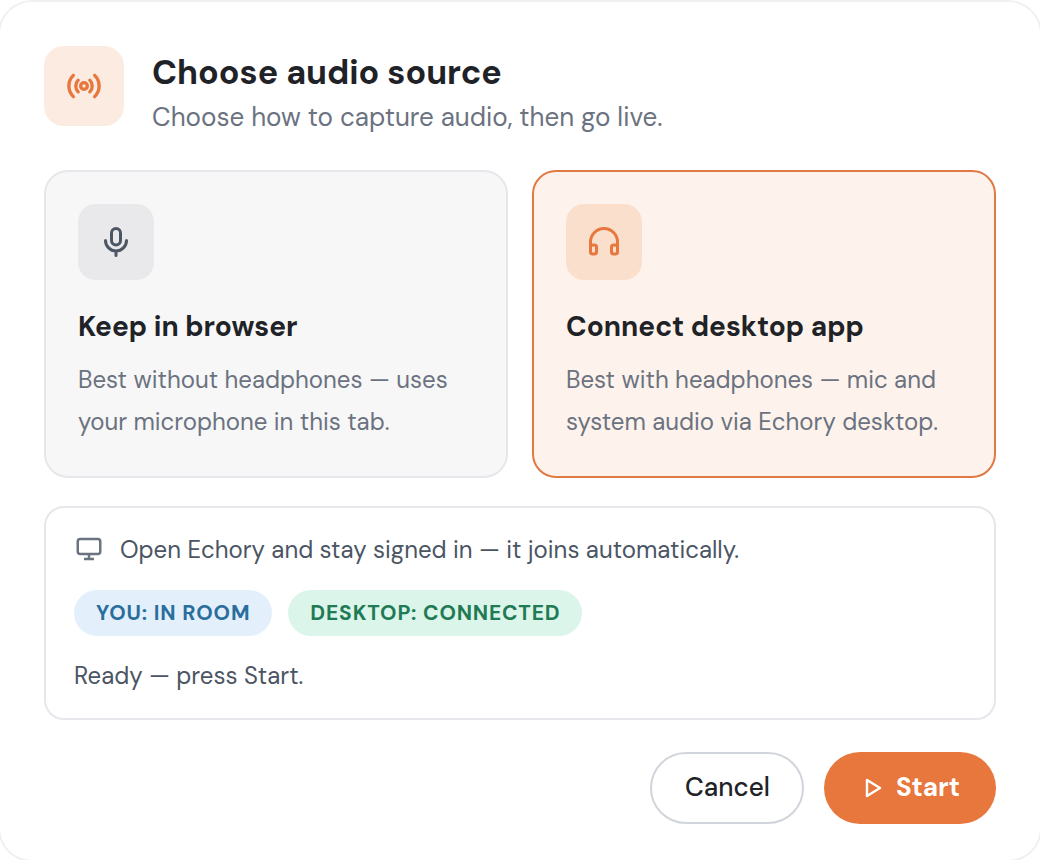
    Click “Go Live”, choose “Connect desktop app” and wait for DESKTOP: CONNECTED. Then click “Start”.

Windows message “Windows protected your PC” with the “More info” link

First click “More info”.

Good to know
Still on version 1.0.0?

Version 1.0.0 was the unsigned pilot build. You can tell by how you installed it: on Windows you confirmed an unknown publisher, or on a Mac you ran a command in Terminal.

It does not update itself. We therefore recommend uninstalling it first and then installing the new version as described above. From then on, all updates arrive automatically.

Windows: open Settings, go to “Apps”, select Echory and click “Uninstall”. Mac: quit Echory and drag the app from your Applications folder to the Trash.

For IT

Signature

Every file is signed by Echory GmbH. Windows: file properties, “Digital Signatures” tab, or in PowerShell Get-AuthenticodeSignature .\Echory-win-x64.exe. macOS: the app is notarized by Apple, and spctl -a -vv /Applications/Echory.app shows “accepted” and Echory GmbH as the developer.

Checksums

SHA-256 for every version, right next to the files: SHA256SUMS-prod-win.txt and SHA256SUMS-prod-mac.txt. Verify with certutil -hashfile Echory-win-x64.exe SHA256 or shasum -a 256 Echory-mac-arm64.dmg. The list shows the file name with its version number, for example Echory-1.0.1-win-x64.exe.

Installation and updates

Windows: installs for the signed-in user, no admin rights. macOS: app in the Applications folder. The app downloads updates in the background and installs them on the next restart, with no admin rights and no reinstall. It only accepts updates signed by Echory GmbH.

Network

Installers come from downloads.echoryflow.com, updates from updates.echoryflow.com, both over HTTPS.

Audio

The app only records audio while a Live session you started is running: your microphone and your computer’s system audio.

Central deployment

For Intune, Jamf or another MDM there is an installer package for the Mac: Echory-mac-arm64.pkg, approx. 109 MB. It is signed by Echory GmbH, verify with pkgutil --check-signature Echory-mac-arm64.pkg. Its checksum is listed in SHA256SUMS-prod-mac.txt. For deployment on Windows, get in touch.

Questions about signatures, checksums or approval: security@echoryflow.com

If the status stays on DESKTOP: WAITING

Then the app is not running or not signed in. Start Echory from the Start menu or your Applications folder. If it is already running, sign out in the app with “Logout” and sign in again via “Continue with browser”. The status then switches to DESKTOP: CONNECTED within a few seconds.

If it stays on WAITING, contact us: hello@echoryflow.com

Why does Windows still warn?

The app is signed by Echory GmbH. Windows still shows the SmartScreen message for a while, because Microsoft only trusts a new app once it has been downloaded often enough. This applies to any new software, whatever certificate it carries.

What matters is the publisher: if it says Echory GmbH, the file comes from us. With every download, Windows builds trust and the message appears less often. On a Mac there is no warning, because the app is notarized by Apple.